Why "The Site Is Up" Is the Most Dangerous Statement
A responding server does not mean customers can use the site. Practical agency scenarios, failure modes, and a checklist for rendered-page monitoring.
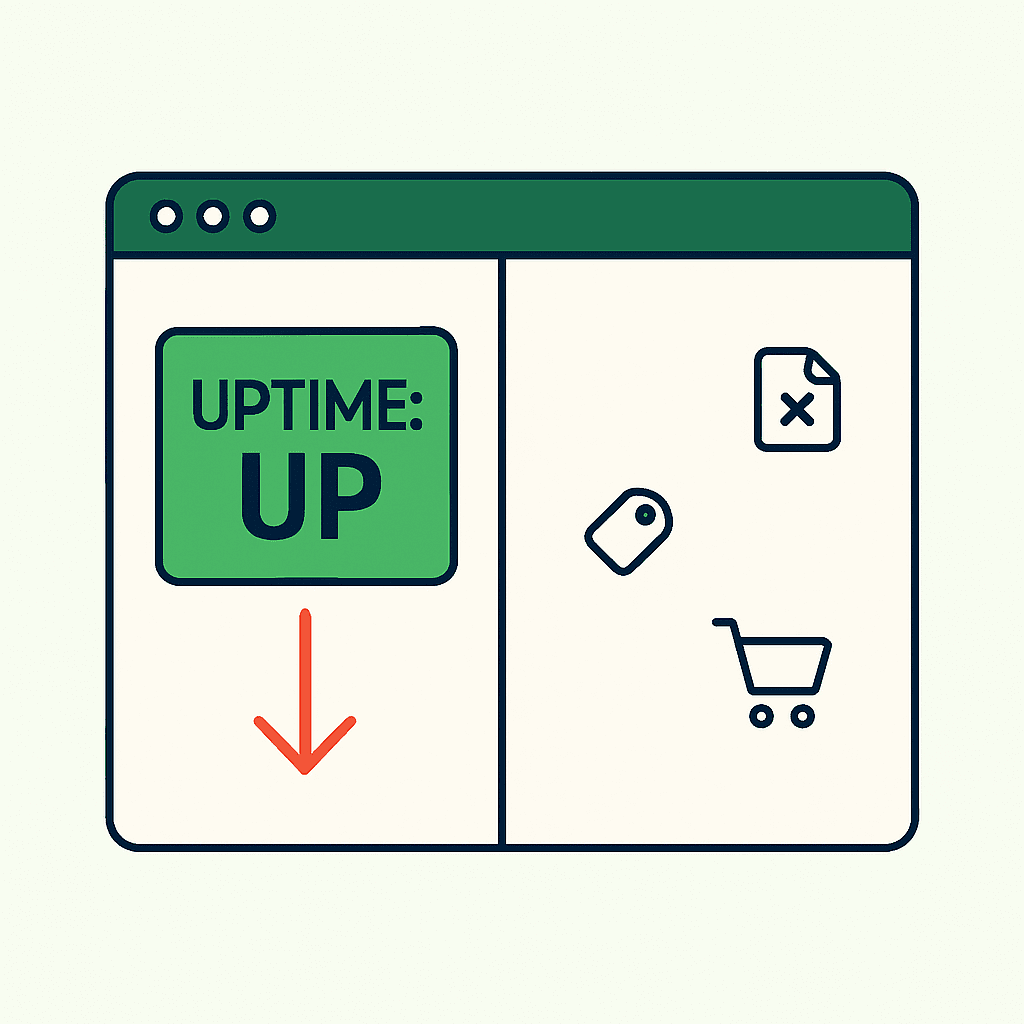
"The site is up" usually means the server responded, the uptime check stayed green, and the host returned 200 OK. That is true. It is also not enough. Agencies can miss failures that wreck conversions while every uptime dashboard looks healthy: a dead form, a JavaScript crash, a missing price, or tracking that stopped firing. The client sees the failure first. The agency looks asleep. This article shows where uptime checks fail, how real users hit browser-side breakage, and what agencies should monitor instead.
Why HTTP 200 Does Not Mean the Site Works
Uptime monitors check one layer: the server responds. Most verify the HTTP status code and maybe a fixed string. Users never experience the site at that layer. They experience a browser running HTML, CSS, JavaScript, third-party scripts, and client-side rendering.
Here is what a green uptime check can miss:
- Client-side JavaScript crashes: React, Vue, and Next.js apps can fail during hydration or runtime. The server still returns 200, but the browser shows a spinner, a blank page, or a console error.
- Silent form failures: A lead form submits through AJAX. A plugin update or library change breaks the submit handler. The page loads. Leads stop.
- Missing DOM elements: A theme change removes the H1, CTA, or price container. The page still renders enough to return 200.
- Third-party script breakage: Analytics, chat, or payment scripts fail to initialize. Revenue tracking disappears.
- SEO signals removed: A plugin or template change adds noindex or the wrong canonical tag. The page is reachable but search visibility drops.
These failures happen in the browser, not the network stack. Uptime does not render the page. It does not inspect the DOM, measure visible content, or run the JavaScript customers depend on. This is the same failure pattern behind the cases in 200 OK But Broken: Why Uptime Monitors Miss It.
Five Agency Failures Hidden Behind "Up"
These are common agency failures across WordPress, Shopify, and custom stacks. In every case, the client blames the agency, not the status code.
1) WordPress lead form died after a plugin update
Symptom: Leads drop to zero for a day. Uptime stays green because the contact page returns 200. Root cause: a plugin renamed the form ID. Front-end JavaScript no longer bound to the submit event. The form looked normal, but the AJAX call never fired. No POST hit the server. Why the agency looks bad: paid traffic kept flowing. The client paid for clicks and got no leads.
2) Shopify campaign page rendered blank after an app install
Symptom: A promo page loads with a blank hero area. Shopify uptime is fine. The CDN returns 200. Root cause: a third-party app injected a script that threw a runtime exception and stopped later rendering. Liquid served HTML. The visible content never mounted. Impact: lost campaign revenue during peak traffic.
3) Product page lost price and Add-to-Cart after a theme change
Symptom: Product images load, but price and Add-to-Cart vanish on several SKUs. No uptime alert fires. Root cause: a theme update changed the DOM structure. The client-side selector that populated price and variants stopped matching. The Add-to-Cart component hid itself when it found no data. Business impact: direct revenue loss and abandoned carts. This is the same failure covered in The Add-to-Cart Button Is the Real Uptime Check.
4) Tracking broke and analytics went quiet
Symptom: Sessions and conversions drop near zero in analytics for a day. The site is reachable. Performance looks normal. Root cause: a CSP change or script path change blocked analytics from loading, so events never fired. Why this matters: marketing loses attribution and cannot prove results.
5) Checkout entry redirected the wrong users
Symptom: Some users click "Begin checkout" and land on the shop home instead. Uptime checks /checkout/ and gets 200, so no alert fires. Root cause: client-side routing misread cookies or A/B test flags. Direct requests looked fine. Real user clicks broke. Result: lost sales and a support spike.
Why Traditional Alerts Miss Browser Failures
Classic monitoring tools miss rendered-page failures for predictable reasons:
- HTTP checks stop before render: They confirm a connection and a response. They do not execute JavaScript, wait for SPA hydration, or inspect the final DOM.
- No browser context: CSP violations, cross-origin script failures, and React hydration errors never appear in a network-only check.
- No business assertions: Uptime checks do not know that price, CTA, and form availability matter more than a 200 response.
- Third-party failures stay hidden: Most checks do not verify that analytics loaded or that a payment script initialized.
- Weak assertions: A simple string match does not prove the primary CTA is visible and clickable.
Status code plus latency is not the same as user experience. If you want a fuller picture of what breaks silently after a deploy, the post-deploy production page checklist covers each layer in detail.
What Rendered-Page Monitoring Should Check
Rendered-page monitoring runs a real browser, loads the page, and checks what a visitor would see. That is the right layer for agency monitoring.
Core checks for every page:
- Final HTTP status and redirect chain
- Page title and H1 presence
- Visible text length or word count to catch blank renders
- Presence and visibility of the primary CTA
- Console errors and resource load failures
- Robots and meta tags, including noindex and canonical
- Screenshot and rendered HTML capture
Checks for high-value page types:
- Lead forms: form fields exist, submit behavior works, and the page returns a success state when safe to test
- Landing pages: hero image, headline, and primary CTA are visible and enabled
- Product pages: price is present, Add-to-Cart is present and enabled, variant selectors work
- Checkout entry pages: checkout button appears and starts the expected route
- Analytics and tracking: expected script tags exist and, where possible, a recent beacon appears
How this maps to common stacks:
- WordPress: monitor plugin-inserted selectors such as Contact Form 7 classes or IDs. Detect plugin-driven noindex changes.
- Shopify: watch Liquid price containers, Add-to-Cart selectors, and common payment app scripts.
- React or Next.js apps: catch hydration warnings, verify the root node has children after mount, and capture runtime exceptions. DataJelly Guard surfaces these signals without adding code to the app.
A rendered-page check with screenshots, console logs, and final DOM output gives the agency evidence, not guesswork.
Your site returns 200 OK — but is it actually working?
Guard is the monitoring technology that catches the silent failures other tools miss. KeyPages.ai is where you turn it on. Audit any URL free first — no signup, results in 30 seconds.
Run a free page auditHow to Add Rendered Checks Without Breaking Client Sites
You do not need full end-to-end purchase tests to get useful coverage. Start with lightweight checks that target revenue and lead risk.
1) Identify critical pages and actions
List the 5 to 10 pages that would hurt most if they failed: homepage, top organic landing pages, paid landing pages, top product pages, cart, checkout entry, and contact or lead form pages.
2) Define assertions per page
Pick 3 to 7 checks per page: CTA visible, price present, H1 and title match, noindex absent, console errors below a threshold, screenshot close to baseline.
3) Run headless browser checks on a schedule and after deploys
Use Chromium with Puppeteer or Playwright. Run every 5 to 15 minutes for high-risk pages. Run hourly or daily for lower-risk pages. Trigger checks after deploys, plugin updates, and theme changes.
4) Keep tests lightweight and read-only
Do not submit real forms or create orders unless you have a sandbox or mock endpoint. Prefer DOM assertions and safe interaction checks.
5) Send evidence-rich alerts
Include a screenshot, rendered HTML snippet, console errors, and the failed assertion. That cuts diagnosis time.
6) Tie checks to deploy and incident workflows
Run checks in CI/CD or post-deploy hooks. If a deploy breaks a key assertion, fail the deploy or open a high-priority ticket.
This approach keeps maintenance low and catches the browser-side failures uptime never sees.
Debugging Faster with Console Errors and DOM Snapshots
When a rendered-page check fails, the fastest path is usually the browser evidence.
Pattern 1: Hydration failure in an SSR React app
Symptom: server-rendered HTML appears, then disappears or flickers. The console shows "Hydration failed" or "Cannot read property of undefined."
Quick checks:
- Capture
final DOM.innerHTMLfor the root node. - Capture console errors and stack traces.
- Compare server-rendered HTML with the final DOM snapshot to see whether the client replaced content with nothing.
Typical causes: code that expects window or document during server render, mismatched server and client markup, or a dependency version mismatch.
Pattern 2: Missing Add-to-Cart in Shopify
Symptom: product images load, but price and Add-to-Cart are gone.
Quick checks:
- Inspect the DOM for known selectors such as
.product__priceand[data-add-to-cart]. - Check the console for resource failures or CSP blocks.
- Capture network requests to see whether a price API returned 500 or a JavaScript bundle failed to load.
Typical causes: a theme change altered markup, an app injected a script that failed early, or an async price API changed response shape.
In both cases, screenshots, DOM snapshots, console logs, and resource failures cut root-cause time far more than uptime checks ever will.
Checklist: What Can Be Broken While the Site Is Technically "Up"
If any item below fails, the site is broken for users even if the host is healthy:
- Blank render or endless spinner
- JavaScript runtime errors
- Missing H1 or title changes
- Primary CTA missing, hidden, or disabled
- Forms that do not submit or never return a success state
- Prices or product data missing
- Add-to-Cart or variant selectors missing or broken
- Checkout entry button missing or redirecting incorrectly
- Analytics or tracking scripts not loading or not sending beacons
- Key images failing to load
- Accidental noindex, bad canonical, or blocked robots meta
- Structured data removed or malformed
- Third-party scripts blocked by CSP or CORS
- Performance regressions severe enough to make the page unusable
Map this list to each client's important pages. Then monitor the failures that cost leads, sales, or search visibility first. The Guard test suite details shows how automated rendered checks cover these signals continuously.
Next Steps for Agencies
Start small. Target the failures that cost money first.
- Pick 3 high-risk clients and monitor 5 pages each for 30 days. Track every incident and how you found it.
- Add rendered checks to post-deploy workflows to catch plugin and theme regressions before clients do.
- Send alerts to the right person with screenshots, console logs, and DOM snippets.
- Set an investigation SLA that beats the client's discovery window, such as 1 to 2 business hours.
If you already run synthetic end-to-end tests, add lightweight rendered-page monitors. They catch silent revenue-page failures without the overhead of full purchase flows.
Where Tools Like DataJelly Guard Fit
You can build rendered-page checks in-house with Playwright or Puppeteer. For some teams, that is the right choice. Agencies managing dozens of clients often need faster setup, shared templates, and evidence-rich alerts.
DataJelly Guard helps monitor production pages for silent browser-side failures and captures rendered evidence such as screenshots, final HTML, console logs, and page-specific signals. It does not replace QA. It helps teams detect silent revenue-page failures faster and triage them with better evidence.
Closing Thought
"The site is up" is a half-truth. Customers do not buy from status codes. They buy from pages that render, forms that submit, prices that show, and checkout buttons that work. Monitor the browser, not just the host.
Start with the five pages that drive the most revenue or leads, then alert on screenshots, console errors, and missing CTAs before the client finds the break.
Your site returns 200 OK — but is it actually working?
Guard is the monitoring technology that catches the silent failures other tools miss. KeyPages.ai is where you turn it on. Audit any URL free first — no signup, results in 30 seconds.
Run a free page audit